
Using Probability and Statistics Features on the TI-84 Calculator
The TI-84 calculator offers robust features for working with Probability and Statistics, enabling users to generate random numbers, perform statistical analysis, and plot data efficiently. This guide covers the essential steps for using these features, helping you harness the full potential of your TI-84 for all your probability and statistical needs.
Working with Probability
Probability functions on the TI-84 are designed to help you work with random numbers generated through algorithms. These features are housed within the PROB submenu of the calculator. The TI-84 includes a variety of commands to facilitate random number generation, which can be used in simulations, modeling, or statistical analysis
Generating Random Integers
To generate a set of random integers between a specified range, follow these steps:
To generate a set of random integers between a specified range, follow these steps:
- Access the PROB Menu:
- Press the [2nd] button, then the [VARS] key to open the DISTR menu.
- Scroll to highlight PROB, and press [ENTER].
- Choose randInt(:
- Use the [DOWN ARROW] to scroll down to randInt(.
- Press [ENTER].
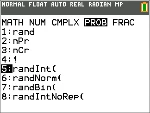
- Enter Range and Number of Integers:
- Enter the lower integer (e.g., 10) and press [ENTER].
- Enter the upper integer (e.g., 25) and press [ENTER].
- Enter the number of integers (e.g., 5), then press [ENTER].

- Generate and View Results:
- After pressing [ENTER], the set of random integers will appear on the screen.

Important Notes on Random Number Generation:
- The TI-84 calculator generates the same sequence of random numbers for a given seed value. By default, the seed value is set to 0.
- To generate a different sequence, store a non-zero seed value in the rand function, and to restore the default seed value, store 0 to rand.
- The seed value affects commands such as randInt(, randNorm(, and randBin(.
Working with Statistics
The TI-84 calculator provides a range of statistics functions that enable you to create data sets, perform regression analysis, and visualize the results. These commands are available in the STAT menu, where you can analyze both one-variable and two-variable data.
Entering Data into Lists
To enter a list of data, follow these steps:
- Open the Data Editor:
- Press [STAT], then select 1: Edit in the EDIT submenu, and press [ENTER].
- Input Data:
- Enter your data into the list columns (L1, L2, etc.). Use the arrow keys to navigate between columns and rows.
- Custom Lists:
- You can also create custom list names by scrolling to a blank list name and pressing [ENTER].
Plotting Data
Once the data is entered, you can easily plot it on the screen:
- Activate Plotting:
- Press [Y=] to open the graphing menu.
- Press 1: Plot1 to enable a scatter plot for your data.
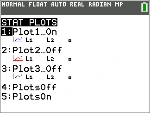
- Ensure that the plot is set to On by pressing the [RIGHT ARROW] key to highlight On, then pressing [ENTER].
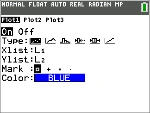
- Set Graphing Window:
- Press [ZOOM], then select 9: ZoomStat to automatically adjust the graphing window based on the data.
- Trace Data:
- Use the [TRACE] key to move through the data points and analyze individual values.
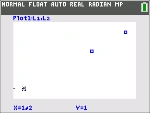
Types of Plots Available:
- Scatter Plot: Display data points on a Cartesian plane.
- XY Line: Plot data with connecting lines.
- Histogram: Visualize data distribution.
- Box-and-Whisker Plot: Plot data to analyze the spread and central tendency.
- Normal Probability Plot: Display the normal distribution of data.
Two-Variable Statistics
To find the two-variable statistics for L1 and L2, follow these steps:
- Select CALC:
- Press [STAT], then use the [DOWN ARROW] to highlight CALC and press [ENTER].
- Select 2-Var Stats:
- Scroll to 2: 2-Var Stats and press [ENTER].
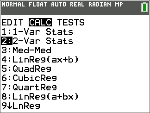
- Calculate the Stats:
- Press [ENTER] to calculate the two-variable statistics, and the results will be displayed on the screen.
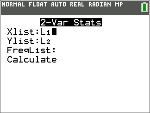
Performing Statistical Analysis
The TI-84 allows you to perform advanced statistical functions such as regression analysis, hypothesis testing, and confidence intervals. Here’s a breakdown of the common statistical operations available:
Best Fit Equations (Regressions)
You can use the regression functions for linear, quadratic, cubic, and other regression types. Access the regression options from the STAT menu.
Inferential Statistics
Perform 16 different hypothesis tests and 15 distribution functions to make inferences about your data. The calculator provides both graphical and numerical representations of hypothesis test results, making it easy to understand the significance of your findings.
Statistical Tests
The TI-84 supports a wide variety of statistical tests, including t-tests, z-tests, chi-squared tests, and more, allowing you to analyze data in-depth.
Using Catalog Help
For quick assistance with syntax and commands, use the Catalog Help function. Press the [2nd] key, then the [0] key (Catalog) to search for specific functions and view descriptions of available commands.
Start calculations at ti84procalc.com