
Adjusting Brightness & Mode Settings on the TI-84 Plus CE
The TI-84 Plus CE graphing calculator lets you fine-tune your display brightness and adjust calculator modes to suit how math and data are displayed. Whether you’re in the classroom or studying at night, these features help you personalize your experience.
Adjusting the Display Brightness
You can manually adjust the screen brightness to improve visibility based on your lighting conditions or screen angle.
🔽 To Darken the Screen:
- Press 2nd + ↓
(Each press decreases brightness one level.)
🔼 To Lighten the Screen:
- Press 2nd + ↑
(Each press increases brightness one level.)
The TI-84 Plus CE remembers your brightness setting, even after it is turned off.
Automatic Screen Dimming (Auto-Dim Feature)
To conserve battery life, your calculator will automatically dim the screen after 90 seconds of inactivity.
Press the on key to restore original brightness.
Your work, cursor position, and open applications will not be affected.
Mode Settings: Customize Your Calculator Display
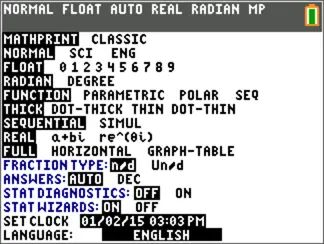
Mode settings control how the TI-84 Plus CE displays and interprets data. You can change modes for:
- Answer formats
- List/matrix behavior
- Graphing modes
- Angle units
- Language display
How to Open the Mode Menu
- Press the mode key.
- Use the arrow keys (↑ ↓ → ←) to navigate.
- Press enter to select your preferred setting.
By default, the cursor will highlight NORMAL. You can press ↑ to switch between MathPrint™ and Classic modes.
Note: Your selections are saved automatically thanks to Constant Memory™, even after the calculator is powered off.
Changing Mode Settings – Step-by-Step
- Navigate with ↑ or ↓ to choose a category.
- Use ← or → to toggle between options on that line.
- Press enter to apply the selected option.
LANGUAGE Setting Exception:
- Use ← or → to select the language.
- Use ↑ or ↓ to confirm and activate.
Full List of Mode Options & Descriptions
| Mode Option | Description |
| MATHPRINT / CLASSIC | Controls how inputs/outputs appear (textbook style or basic) |
| NORMAL / SCI / ENG | Choose numeric display notation: standard, scientific, or engineering |
| FLOAT / 0–9 | Select number of decimal places shown in answers |
| RADIAN / DEGREE | Choose unit for angle measurements |
| FUNCTION / PARAMETRIC / POLAR / SEQ | Choose the graphing mode for plotting equations |
| THICK / DOT-THICK / THIN / DOT-THIN | Set graph line thickness or style |
| SEQUENTIAL / SIMUL | Plot graphs one at a time or simultaneously |
| REAL / a+bi / re^(qi) | Choose number format: real, rectangular complex, or polar complex |
| FULL / HORIZONTAL / GRAPH-TABLE | Choose screen view: full, side-by-side, or graph/table split |
| FRACTION TYPE: n/d / Un/d | Show answers as simple or mixed fractions |
| ANSWERS: AUTO / DEC | Control how final answers appear |
| STAT DIAGNOSTICS: OFF / ON | Enable/disable regression diagnostic info |
| STAT WIZARDS: ON / OFF | Enable helpful prompts in statistical tools |
| SET CLOCK | Set system time and date |
| LANGUAGE: ENGLISH | Choose display language (if multilingual apps installed) |
Summary: Personalize Your TI-84 Experience
| Feature | Action |
| Adjust Brightness | 2nd + ↑ or ↓ |
| Wake Screen | Press on |
| Open Mode Menu | Press mode |
| Save Mode Changes | Press enter on selected mode |
| Custom Graph Views | Choose from FUNCTION, POLAR, SEQ, etc. |
These settings help you adapt the TI-84 Plus CE to your preferred learning environment, subject area, and graphing style.