
Using the TI-84 Plus CE Keyboard (Full Guide)
The keyboard of the TI-84 Plus CE graphing calculator is packed with powerful shortcuts, intuitive layout, and smart menus that help you navigate quickly between functions, apps, and settings. This section will teach you how to turn your calculator on/off, understand all key zones, and use 2nd/alpha shortcuts efficiently.
How to Turn the TI-84 Plus CE On and Off
Turning the Calculator On
To power on your device:
- Press the on button.
You will see an information screen. From here:
- Press 1 to go to the home screen and skip this screen next time.
- Press 2 to go to the home screen and show this screen again next time.
Note: This message also appears when the RAM is reset.
From the info screen, you can also:
- Press alpha + f1–f4 for shortcut menus.
- Press + (plus) on most menu items for Catalog Help.
- Some screens also show alpha + f5 for context-sensitive shortcuts (like interactive graphing or TI-Basic tools).
Turning the Calculator Off
To turn off your TI-84 Plus CE:
- Press 2nd + off.
The calculator uses Constant Memory™, which:
- Preserves all settings and memory even when powered off.
- Clears any active error condition.
Automatic Power Down™ (APD™)
- If the calculator is idle for 3 to 4 minutes, it will turn off automatically.
- When powered back on, it returns to exactly where you left off, including cursor position, open menus, or error states.
Bonus Tip: If the calculator is off and connected to another device (e.g., PC or another calculator), it will automatically wake up for communication.
TI-84 Plus CE Keyboard Layout Breakdown
The calculator’s keyboard is divided into functional zones for quick access:

| Zone | Description |
| Graph/Plot Setup Keys | Launch graphing features; open tools from the graph screen (ƒ b) |
| Editing Keys | Edit expressions, paste templates (e.g., fraction format) |
| Math & Stats Keys | Access menus for math, statistics, and number operations |
| Scientific Keys | Trigonometry, logarithms, exponents, and more |
| Number Keys (0–9) | Standard numeric input |
| Basic Math Operators | +, –, ×, ÷, enter |
Function Key Guide (2nd, Alpha, and Shortcuts)
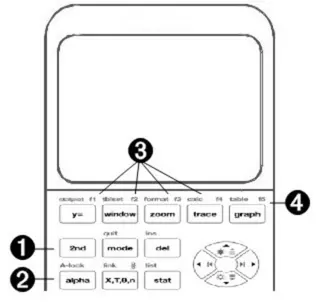
1. 2nd Key (Secondary Functions)
- Access blue-colored functions printed above the keys.
- Activates only for the next key press.
- Cursor changes to ↑ while active.
Example:
Press 2nd → test to open the TEST menu.
2. alpha Key (Tertiary/Alphabetic Functions)
- Access green-colored labels (like A–Z or SOLVE).
- Lets you enter letters or access programming commands.
Example:
To type A, press alpha → A.
Alpha Lock (Multiple Letters)
To avoid pressing alpha again and again:
- Press 2nd → A-lock to lock alpha mode.
- Cursor changes to A.
- Press alpha again to unlock.
Bonus Shortcut Keys
| Shortcut Combo | Description |
| alpha + f1–f4 | Open shortcut menus: Fractions, Matrices, MATH, VARS |
| alpha + f5 | Opens context-sensitive tools (based on where you are) |
| + on menu items | Shows Catalog Help for that function |
Summary: Master the Keyboard
| Feature | Shortcut | Purpose |
| Turn On | on | Power up the calculator |
| Turn Off | 2nd + off | Turn off safely |
| Auto Sleep | Auto after 3–4 mins | Battery saving |
| 2nd Functions | 2nd + [Key] | Use blue alternate functions |
| Alpha Letters | alpha + [A–Z] | Enter letters or programming |
| Alpha Lock | 2nd → A-lock | Continuous text input |
| Quick Menus | alpha + f1–f5 | Access quick tools and math templates |